
Get Alerts When Your Discord Bot Has Problems
Kage Monitoring reports missing bot permissions, deleted channels and wrong roles right away in Discord and optionally by DM.
Updated: 13 October 2026
A channel gets deleted, a role moves above the bot's role, an admin removes permissions: the module stops working and nobody notices until someone complains. Monitoring checks your active modules regularly and reports problems straight into a Discord channel.
Quick answer: In the dashboard open Monitoring, switch on Monitoring active, choose a private admin channel (or let Kage create one with Create channel automatically), save and check with Send test message.
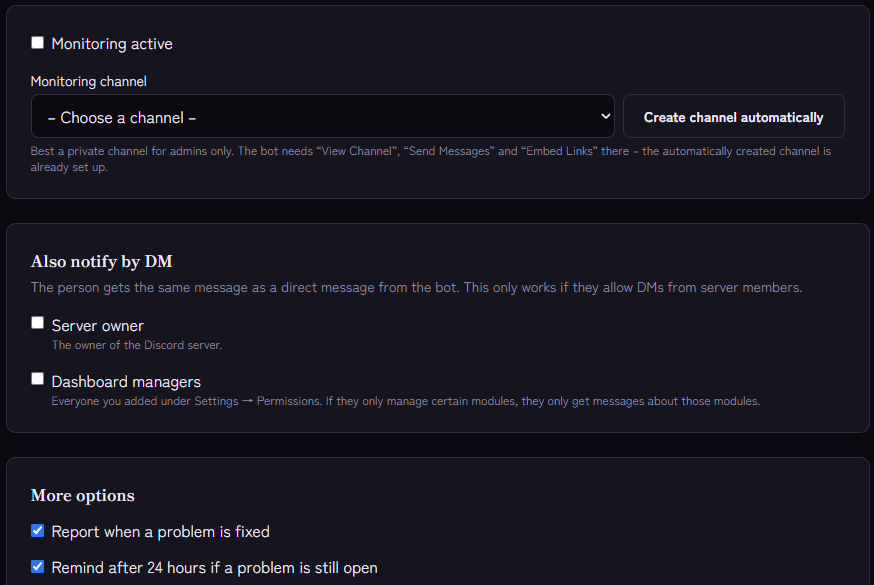
Setting it up
- Open the Monitoring module and switch on Monitoring active.
- Choose the Monitoring channel. Best a private channel for admins only. The bot needs "View Channel", "Send Messages" and "Embed Links" there. Create channel automatically makes Kage create a channel visible only to the bot and administrators, already set up correctly. Then save below.
- Optional: Also notify by DM: the server owner and/or the dashboard managers (everyone you added under Settings › Permissions). If they only manage certain modules, they only get messages about those modules.
- Under More options you decide whether Kage should report when a problem is fixed, remind after 24 hours if a problem is still open, and in which language the messages come (automatic follows the server language in Discord).
- Save and click Send test message. The test uses the last saved settings and shows whether the channel and DMs arrive.
What gets reported
Monitoring uses the same health check as the red markers in the dashboard and only checks active modules. Typical reports:
- The chosen channel no longer exists or has the wrong type.
- The bot is missing permissions in a channel (for example Send Messages or Embed Links).
- A chosen role no longer exists, cannot be assigned or sits above the bot's role.
- The bot is missing server-wide permissions such as "Manage Roles".
- An active module has no channel or role selected yet.
Each report also says whether you fix the problem directly in Discord (🛠, for example permissions or role order) or in the dashboard (🖥, for example choosing a different channel) and links to the affected module. The module itself shows the explanation with instructions.
How often and how reliable?
- The check runs in the background about every three minutes.
- New problems are reported, open ones are reminded once after 24 hours (if enabled), and resolved ones optionally as "fixed".
- If Discord is not reachable at the moment, Kage changes nothing. That avoids both a false alarm and a false "fixed".
- If delivery fails (channel blocked, DMs off), the problem stays marked "not delivered yet" and Kage tries again on the next run.
The page also shows Currently open problems with an Open module link.
If it does not work
- The test message does not arrive. Check the bot's permissions in the monitoring channel ("View Channel", "Send Messages", "Embed Links").
- DMs are not delivered. The person does not allow direct messages from server members. The test result shows how many DMs could not be delivered.
- Too many reports. An active module without a channel or role reports until it is fully set up. Switch off modules you do not use.
- Nothing is reported, but a module does nothing. Monitoring only finds setup problems the health check knows, not mistakes in the logic of your settings. For role problems see Bot not assigning roles.
FAQ
Do I have to grant permissions?
The bot needs the three permissions above in the monitoring channel. Everything else it reads without changing anything.
Does everyone see the reports?
Only those who may see the channel. Use a private channel.
Does this replace a backup?
No, it reports problems but restores nothing. For that there is Server Backup.
If you prefer to see numbers and trends in one window, use the Kage Control Center, the desktop app for health, analytics, security and support.
Related Kage features
- MonitoringEnterprise
Related articles
More on this topic: Discord Server Monitoring: Catch Problems Early
More questions? Ask Kage AIAI
Describe what you need – Kage AI picks out the right guide and gives you the sources.
Try Kage on your server
Sign in with Discord, invite the bot and set up the modules in the dashboard. The Basic plan is free forever.