
How to Make a Ticket System in Discord: Setup Guide
Step by step to a ticket system – with a panel button, private ticket channels, support roles, priority, internal notes and a saved transcript of the conversation.
Updated: 20 October 2026
A ticket system gives members a clear way to reach your team without requests getting lost in the general channel. With Kage a member opens a private channel with one click, in which only they and your support team can write.
What it looks like for members
- In a channel of your choice there is a message with the "Create ticket" button 🎫.
- The click creates a private channel in the category you defined.
- Only the member, your support roles and the bot can see the content there.
- Anyone who already has an open ticket does not get a second channel but a notice with a link to the existing ticket.
Setup
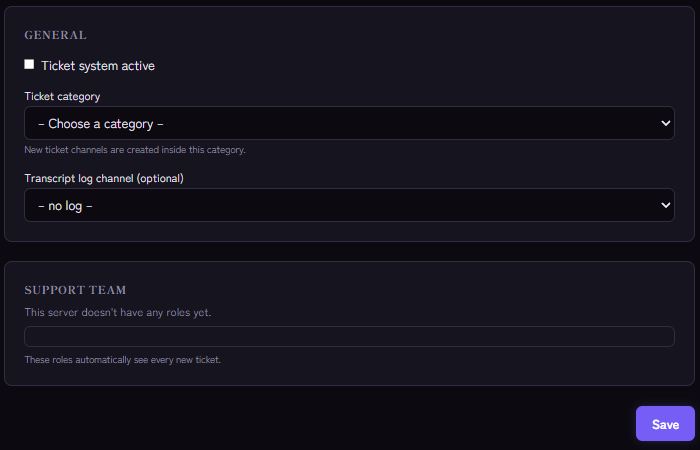
- Create a category: Create a category in Discord, for example "Support". The ticket channels will be created here.
- Define support roles: In the Kage dashboard, in the Tickets module, choose the roles that may see and handle tickets. Real server admins with the "Manage Server" permission always count as team.
- Choose a log channel: Kage writes the conversation transcript into this channel when a ticket is closed. Choose a channel only your team can see.
- Post the panel: Choose the channel for the message with the ticket button and publish it. There is one panel per server.
- Switch the module on and save.
The bot needs the "Manage Channels" permission to create ticket channels and delete them again, in the chosen ticket category (plus View Channel and Send Messages). The dashboard and the Monitoring module point it out when a permission is missing in the category or when the panel channel, log channel, category or support role no longer exist.
What your team can do in a ticket
In the ticket channel the team has these functions:
- Claim: A team member takes the ticket so that it is clear who is handling it.
- Transfer: The ticket can be handed over to another team member.
- Set priority: You can choose between low, medium, high and urgent.
- Internal notes: Notes are meant for the team and not visible to the member.
- Private team thread: The team's controls live in a private thread in the ticket channel. The member cannot see it.
Closing a ticket and saving the transcript
When closing, Kage saves a transcript of the conversation and puts it in the log channel (details in How to Save and Read Discord Ticket Transcripts). The member loses the right to write in the ticket channel, and the channel is deleted after a short time. If deleting fails, for example because of missing permissions, the channel stays and the team can reopen the ticket or delete it for good.
After closing, the member can rate the ticket with stars. That shows you where your support works well and where it does not.
Typical pitfalls
- The button does not react: Check that the module is switched on and a category was chosen. Without a category Kage rejects opening a ticket with a message.
- The team cannot see tickets: The support role must be entered in the module settings, because only then does it get access to newly created ticket channels.
- A closed ticket cannot be reopened: An already deleted channel cannot be restored. The member then opens a new ticket.
If you need the same details for every request, for example for applications, a form is the better choice. An overview of both tools is in Organising support on Discord.
Related Kage features
- TicketsFrom Premium
- MonitoringEnterprise
Related articles
More on this topic: Discord Ticket System: Setup and Best Practices
More questions? Ask Kage AIAI
Describe what you need – Kage AI picks out the right guide and gives you the sources.
Try Kage on your server
Sign in with Discord, invite the bot and set up the modules in the dashboard. The Basic plan is free forever.