
How to Save and Read Discord Ticket Transcripts
How Kage saves the conversation of every ticket as a text file, where to find it, what it contains and what it does not – including data protection tips for your team.
Updated: 14 October 2026
Once a ticket is closed and its channel deleted, the conversation is gone from Discord. Anyone who later wants to check what was promised needs a transcript. Kage creates it automatically when a ticket closes, stores it and, if you want, drops it into a channel for your team.
In short: In the Tickets module choose a transcript log channel. When a ticket closes, Kage posts the conversation there as a text file. Independently of that, it stores the transcript in the dashboard: under Tickets the Transcript button opens the history together with the internal notes.
How the transcript is created
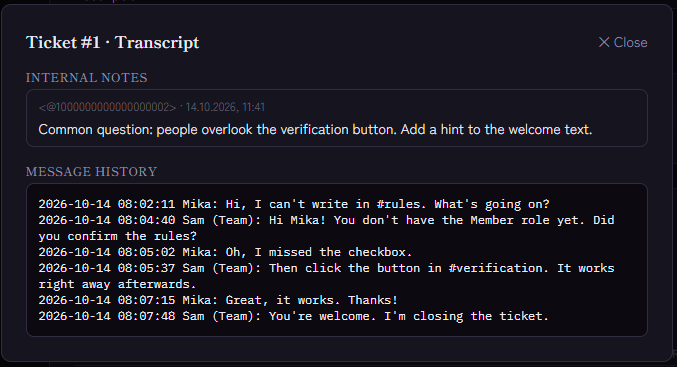
The transcript is created when a ticket is closed, not before. Kage reads the messages in the ticket channel and writes them as plain text, one line per message:
- Each line starts with the date and time (in UTC), followed by the name and the text of the message.
- Attached files appear as a separate line with the link to the attachment.
- The transcript contains at most the last 500 messages of the ticket. In a very long conversation the beginning is therefore missing.
- A ticket without messages produces the entry "(no messages)".
If a ticket is reopened and closed again, the new transcript replaces the old one.
Where to find the transcript
- In the transcript log channel: When a ticket closes, Kage posts a short message saying who closed it and attaches the text file
transcript-<channel name>.txt. You pick the channel in the Tickets module under Transcript log channel (optional). - In the dashboard: Open the Tickets module. Every ticket in the list has a Transcript button. It shows the message history and, above it, the team's internal notes.
Even without a log channel the transcript stays available in the dashboard. The member does not receive a copy.
Setting it up
- Create a channel in Discord that only your team can see, for example
#ticket-logs. - Give the bot View Channel, Send Messages and Attach Files there.
- Open the Tickets module in the Kage dashboard and choose the channel under Transcript log channel (optional).
- Save.
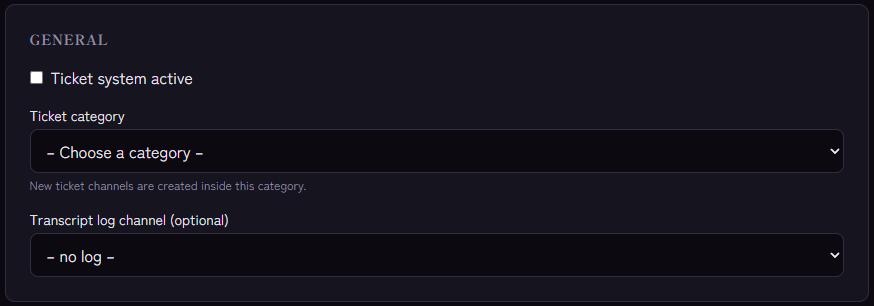
The general setup of the ticket system is explained in How to Make a Ticket System in Discord: Setup Guide.
What the transcript does not contain
- The content of embeds, for example cards posted by a bot. Only the normal message text counts.
- Reactions and edit histories. For an edited message the text it had at the time of closing appears.
- Deleted messages. Whatever was deleted before closing is missing.
- The files themselves. The transcript only contains the link. Discord may let links to attachments expire after a while. If a file matters to you, save it separately.
Data protection and housekeeping
A transcript contains names, text and possibly personal details. Treat it accordingly:
- Limit the channel: Only people who really need transcripts should see the log channel.
- Inform members: For example, state in the text of the ticket panel that conversations are saved for quality assurance.
- Think about retention: Kage does not delete stored transcripts by itself. Delete files in the log channel when you no longer need them, and check what applies to your server legally. This article is not legal advice.
Typical pitfalls
- Nothing appears in the log channel: Check that a channel is selected and that the bot may write and attach files there. If a permission is missing, Kage cannot send the file. The transcript is still stored in the dashboard.
- The button says "no transcript": The ticket is still open. The transcript is only created on closing.
- The beginning of a long ticket is missing: That is the limit of 500 messages. If you need longer histories, close tickets before they get that long and open a new ticket for a new topic.
FAQ
Can I download the transcript as a file?
In the log channel it already is a text file. In the dashboard you can copy the text.
Does this apply to forms as well?
No. Forms store the answers, but no conversation. When which tool fits is explained in Discord Ticket System: Setup and Best Practices.
Related Kage features
- TicketsFrom Premium
- MonitoringEnterprise
Related articles
More on this topic: Discord Ticket System: Setup and Best Practices
More questions? Ask Kage AIAI
Describe what you need – Kage AI picks out the right guide and gives you the sources.
Try Kage on your server
Sign in with Discord, invite the bot and set up the modules in the dashboard. The Basic plan is free forever.