
How to Make a Discord Server Stats Channel
Show the member count in a channel name: how to set up a stats channel on Discord and its limits.
Updated: 14 October 2026
A channel such as "👥 Members: 1,234" shows at a glance how big your server is. With the Server Stats Channel module Kage regularly renames a voice channel with the current member count.
Quick answer: Create a voice channel (ideally locked so nobody can join), pick it in the dashboard under Stats channel and adjust the Name template. Placeholder: {count}.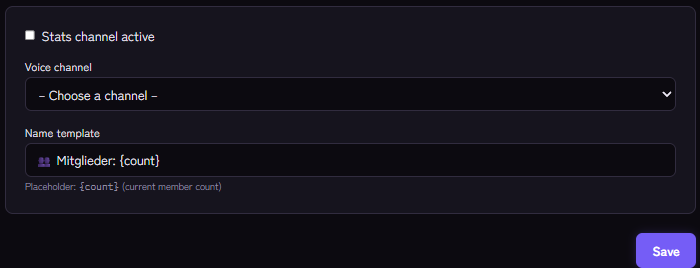
Setting it up
- In Discord create a voice channel, for example in an "Info" category. Allow
@everyoneView Channel but deny Connect so nobody joins the channel. - Give the bot View Channel and Manage Channels in this channel so it may rename it.
- In the Kage dashboard open the Server Stats Channel module and switch on Stats channel active.
- Choose the Voice channel.
- Adjust the Name template. The placeholder
{count}stands for the current member count. Default: "👥 Mitglieder: {count}" (German text, so set your own). - Save.
How current is the number?
Kage checks roughly every ten minutes and renames the channel if needed. Discord only allows renames every few minutes, so the display can lag a little.
Limits
- One number is shown: the member count.
- Detailed statistics (growth, activity) are in the Analytics module, see How to see Discord server growth and activity.
If it does not work
- The name does not change. Check that Stats channel active is on, the bot may manage the channel and the template contains
{count}. - No voice channel in the list. Create a voice channel in Discord first.
- The number lags behind. That is due to Discord's rename limit.
Works well with
Stats channels show numbers at a glance. Sticky messages keep important notes visible, and temporary voice channels keep voice rooms tidy.
FAQ
Can I show several numbers (online, bots)?
The module shows the member count. Other figures are not part of it.
Can someone join the channel?
Only if you do not deny Connect. Lock it for @everyone.
Related Kage features
- Server Stats ChannelIncluded in Basic
Related articles
More on this topic: Discord Channel Management: Organization and Automation
More questions? Ask Kage AIAI
Describe what you need – Kage AI picks out the right guide and gives you the sources.
Try Kage on your server
Sign in with Discord, invite the bot and set up the modules in the dashboard. The Basic plan is free forever.