
How to Create Temporary Voice Channels in Discord (Join-to-Create)
Create join-to-create voice channels that delete themselves when empty: how temporary voice channels work and how to set them up.
Updated: 14 October 2026
Instead of keeping ten permanent voice channels, Kage creates them on demand: whoever joins a trigger channel automatically gets a new voice channel of their own and is moved into it. When it is empty, the bot deletes it again. This is the "join-to-create" principle.
Quick answer: In the dashboard open Temporary Voice Channels, switch it on and create a trigger channel with Create hub (or pick an existing voice channel). Members join it and get their own room.
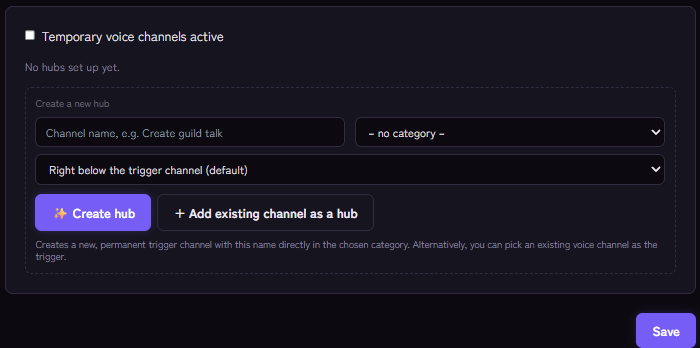
Setting it up
- Open the module and switch on Temporary voice channels active.
- Create a hub: either have a new, permanent trigger channel created in a category with Create hub, or add an existing voice channel with Add existing channel as a hub.
- For each hub set:
- Name template: the placeholder {username} inserts the display name, default "{username}'s channel".
- Default user limit (0 = unlimited) and optionally the Bitrate in kbps.
- Target category for the new channels.
- Where do new channels appear? Right below or above the trigger channel, at the very top or at the very bottom.
- Optionally Also create a linked private text channel: a text channel only for the participants, deleted together with the voice channel.
- Save.
You can run several independent hubs, for example one for "Gaming" and one for "Chilling", each with its own template.
The control panel for owners
The creator of a channel gets a control panel with buttons. Among other things they can rename the channel, change the user limit and the audio quality, choose the visibility (open, closed, hidden or password-protected), pick a voice region, remove members, transfer ownership or delete the channel. If the owner leaves, someone else can take over with Claim.
Permissions
In the target category the bot needs View Channel and Manage Channels, and the permission to move members. If the bot cannot see the category, the dashboard shows a warning and new channels end up outside any category at the very top.
If it does not work
- No channel is created. Is Temporary voice channels active on? Is the trigger channel really what is joined? Does the bot have the required permissions in the category?
- The channel ends up at the very top. The bot cannot see the target category (see the warning in the dashboard).
- Empty channels stay. The bot deletes the channel once it is empty. Check that it has the permission to delete.
- Removing a hub: The dashboard asks whether the Discord channel should be deleted too if Kage created it.
Works well with
To keep an eye on how busy your voice channels are, show it in a stats channel. For music in a room of its own, see the music bot.
FAQ
Do I have to create the trigger channel myself?
No, Kage can create it for you in a category.
Do the settings survive a restart?
Yes, the assignment of channels to their owners is stored permanently.
Related Kage features
- Temp Voice ChannelsFrom Premium
Related articles
More on this topic: Discord Channel Management: Organization and Automation
More questions? Ask Kage AIAI
Describe what you need – Kage AI picks out the right guide and gives you the sources.
Try Kage on your server
Sign in with Discord, invite the bot and set up the modules in the dashboard. The Basic plan is free forever.