
How to Set Up a Music Bot in Discord: Radio and Library
What Kage Music can play, what it cannot, and how to set it up: radio streams, your own stream URLs and the music library.
Updated: 14 October 2026
Anyone searching for a "music bot" often thinks of YouTube or Spotify. Kage Music deliberately works differently, and you should know that up front so you pick the right bot.
Quick answer: Kage Music plays curated internet radio stations, your own direct audio stream URLs and a rights-cleared music library in the voice channel. It does not play YouTube or Spotify.
What Kage Music can do
- Curated radio stations: eight stations, including lofi, jazz, classical, ambient, chillhop and electronic.
- Your own stream URLs: direct audio streams (for example .mp3 or Icecast/Shoutcast) when you allow it in the dashboard.
- Music library: a rights-cleared catalogue maintained centrally by Kage, controlled with
/music library-searchand/music library-play. - Control panel:
/music panelposts a panel with buttons and a station picker into the channel. - Commands:
/music play,pause,resume,skip,stop,volume,nowplaying,stationsanddj-role.
What it does not do
- No YouTube, Spotify or similar streaming services. That is deliberate, because their terms of use do not allow it.
- A bot can only be in one voice channel per server. With the Enterprise plan you can run up to three Kage Music bots (
/music,/music-2,/music-3) at once.
Setting it up
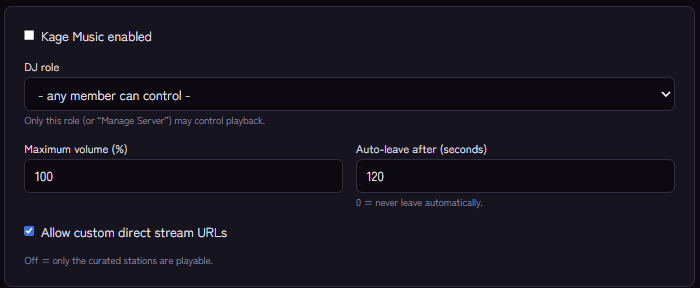
- In the dashboard open Kage Music and switch on Kage Music enabled.
- Optionally set a DJ role. Only this role (or "Manage Server") may control playback; with no selection any member may.
- Set the Maximum volume (%) and Auto-leave after (seconds) (0 = never leave automatically).
- Under Allow custom direct stream URLs decide whether only the curated stations are playable.
- With Post how-to Kage writes an embed with the commands into a channel, optionally including a working control panel, ideal for a dedicated music channel.
- In the library card you can restrict which genres are playable with the Genre filter.
In your voice channel the bot needs Connect and Speak.
Legal note
Public playback of music on your server may require a licence (for example GEMA/GVL in Germany). Responsibility lies with the server operator; details are in the terms. For the stations Kage chooses sources that offer listening freely.
If it does not work
- The bot does not join the channel. Check Connect and Speak and whether the bot is already in another voice channel of the server.
- A URL is rejected. It must be a direct audio stream URL, not a web page, and the option must be allowed.
- Nothing happens on commands. Check the DJ role.
Works well with
Music works best in a voice channel of its own. Temporary voice channels give each group its own room, and a sticky message keeps the commands visible in the music channel.
FAQ
Can I play YouTube links?
No.
Does the bot leave the channel by itself?
Yes, after the set time in an empty channel (Auto-leave).
Related Kage features
- Kage MusicFrom Premium
Related articles
More on this topic: Discord Channel Management: Organization and Automation
More questions? Ask Kage AIAI
Describe what you need – Kage AI picks out the right guide and gives you the sources.
Try Kage on your server
Sign in with Discord, invite the bot and set up the modules in the dashboard. The Basic plan is free forever.