
How to Detect Live Streams in Discord Automatically
Kage detects through Discord itself when members go live on Twitch or YouTube and announces them, without you maintaining names.
Updated: 13 October 2026
When many members stream, a list of channel names is tedious. Streamer Detection works differently: you set a role and a channel, and Kage recognises through Discord's own "Streaming" indicator when someone with that role goes live.
Quick answer: In the dashboard open Streamer Detection, switch on Automatic live detection active, choose the approved role and the announcement channels for Twitch and YouTube, and save. Each person needs the role and an account connected in Discord.
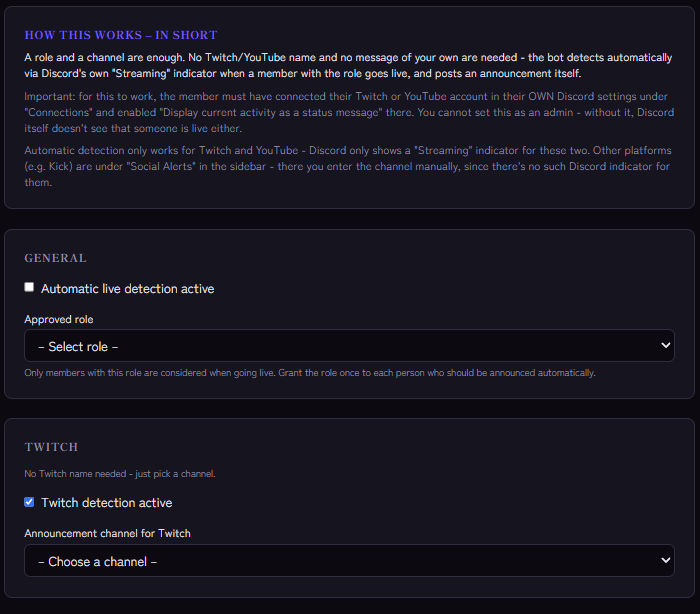
Requirement on the members' side
This is the most common stumbling block, and you cannot get around it as an admin: each member must connect their Twitch or YouTube account in their own Discord settings under Connections and enable "Display current activity as a status message" there. Without it, Discord itself does not see that someone is live either. Share this instruction with your streamers.
Setting it up
- Open the Streamer Detection module and switch on Automatic live detection active.
- Choose the Approved role. Only members with this role are watched. Grant it once to each person who should be announced.
- Switch on Twitch detection active and/or YouTube detection active and choose one announcement channel each. Both may be the same channel.
- Optional under Message & fine-tuning: a role mention, the message text and the minimum time between two announcements in minutes.
- Save.
The default message is 🔴 {member} is now live on {platform}!. Available are {member} and {platform}. The minimum interval (default 30 minutes, 0 for none) prevents spam if the live indicator flickers briefly.
What the announcement contains
Kage posts the message and an embed with the stream title as a link, the platform, the category or game (if Discord provides it) and the member's profile picture.
Limits
- Only Twitch and YouTube. Only for these two does Discord show a "Streaming" indicator. For Kick and other sources use Social Alerts with a fixed list.
- Only livestreams. New YouTube videos are not detected by this feature; for those you need the YouTube entry.
- Only members with the approved role are watched. That is deliberate, so that not everyone is evaluated without being asked.
- After a bot restart a stream that is already running can be announced once more.
If it does not work
- No announcement arrives. Does the person have the role, the connected account and "display activity as status" enabled? Is detection switched on for the platform and a channel chosen?
- Announcements are missing in between. Check the minimum interval: within that time Kage does not report the same person again.
- The bot does not post. Check the permissions in the target channel (view, write, embed links). Monitoring reports missing permissions.
FAQ
Do I have to enter channel names or links?
No. That is the advantage over the fixed list.
Can I put Twitch and YouTube into different channels?
Yes, each platform has its own channel. Choose the same one if both should appear together.
Which is better: list or detection?
The list suits known, individual channels, also outside your server. Detection suits a community with many streamers who connect their accounts themselves. You can combine both; watch out for duplicate messages in the same channel then.
Related Kage features
- Streamer DetectionIncluded in Basic
Related articles
More on this topic: Connect Social Media to Discord: Announce New Content
More questions? Ask Kage AIAI
Describe what you need – Kage AI picks out the right guide and gives you the sources.
Try Kage on your server
Sign in with Discord, invite the bot and set up the modules in the dashboard. The Basic plan is free forever.