
How to Set Up Twitch Live Notifications on Discord
Kage announces on Discord as soon as a Twitch channel goes live: enter the username, choose channel and role ping, adjust the template.
Updated: 13 October 2026
Your stream is running, but the community only finds out by chance? With the Twitch entry of Social Alerts, Kage announces automatically as soon as a Twitch channel goes live.
Quick answer: In the dashboard under Social Alerts open Twitch, enter the Twitch username or channel link, choose an announcement channel and click Add.
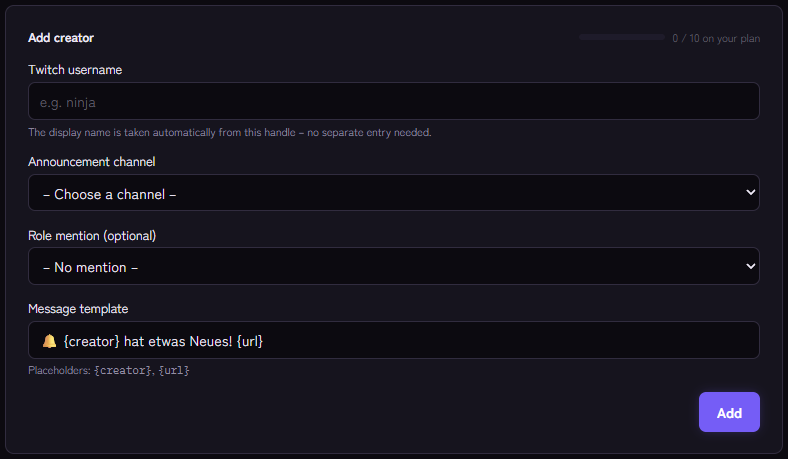
Setting it up
- Open Social Alerts › Twitch and use the Add creator form.
- Enter the Twitch username, for example
ninja, or the linktwitch.tv/ninja. The display name is taken from the username automatically. - Choose the channel where it is announced.
- Optional: a role that is pinged with every announcement (otherwise No mention).
- Adjust the message template. Available are
{creator},{title}(the stream title),{url}(link to the channel) and{platform}. - Click Add.
Example template: 🔴 {creator} is live: {title} {url}
You do not need your own Twitch developer account for this. Kage uses its own connection for all servers.
How the announcement behaves
- Kage checks about every five minutes whether the channel is live. The announcement arrives with a short delay.
- One stream, one announcement. If the same stream keeps running, no second message comes. If the channel later starts a new stream, there is a new announcement.
- If the channel is already live on the first check after adding it, that running stream is only remembered and not announced.
- Offline periods produce no message.
Two ways: list or automatic detection
The Twitch entry works with a fixed list of channels and also works for channels that are not on your server. If you would rather cover all streamers in your community without maintaining names, use automatic stream detection: Kage detects through Discord when someone with a certain role goes live.
Tips
- A separate channel such as
#livelets members subscribe or mute selectively. - A role for voluntary subscription instead of a constant ping, see self-assignable roles.
- With
/social testan administrator can have all entries checked immediately.
If it does not work
- Nothing arrives. Is the username correct? If the channel was already live when you added it, only the next stream is announced.
- The bot does not post. Check the permissions in the target channel (view, write, embed links). Monitoring reports missing permissions.
- The limit is reached. The number of entries per platform depends on the plan.
FAQ
Does the streamer have to be on my server?
No, the Twitch entry only reads public data of the channel.
Can I change the text per streamer?
Yes, each entry has its own template, its own channel and its own role.
Related Kage features
- TwitchFrom Premium
- Streamer DetectionIncluded in Basic
Related articles
More on this topic: Connect Social Media to Discord: Announce New Content
More questions? Ask Kage AIAI
Describe what you need – Kage AI picks out the right guide and gives you the sources.
Try Kage on your server
Sign in with Discord, invite the bot and set up the modules in the dashboard. The Basic plan is free forever.