
How to Set Up a Discord Goodbye Message with a Banner
Have your bot send a goodbye message with a banner automatically when someone leaves the server – with text, placeholders, a preview and the typical pitfalls.
Updated: 14 October 2026
When someone leaves your server, the bot can mark it with a short message in a channel: a banner with the profile picture and a goodbye text. It is a quiet thank-you to the person and shows the community that someone has gone. With Kage, the Leave module takes care of this.
In short: Open the Leave module in the dashboard, pick a channel, write a title and text, switch the module on and check the result with /leave test.Step by step
- Open the dashboard, pick your server and go to the Leave module.
- Choose the channel the message should appear in. Many servers use the welcome channel or a quiet channel for server news.
- Write the title and the text. Placeholders make the message personal (see below).
- Design the banner: a custom background image, the position of the profile picture and the text, the text colour and the colour of the ring around the profile picture.
- Decide whether the message appears as an embed with a coloured border or as text with an image.
- Switch the module on and save.
- Check the result with
/leave test. The command posts a preview in the channel without anyone having to leave.
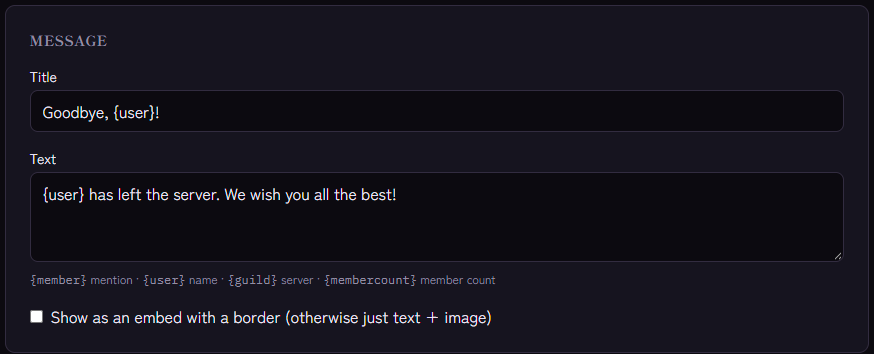
The settings are the same as for the welcome message. If you use both, you can match the look of the two banners.
Placeholders
You can use these placeholders in the title and the text:
{user}is the person's display name.{member}mentions the person.{guild}is the name of your server.{membercount}is the current member count.
For goodbye texts {user} is usually the better choice: a mention refers to an account that has already left the server, and Discord does not always show it with a name then. Placeholders Kage does not know stay in the text unchanged.
Example: "{user} has left the server. All the best!"
What happens behind the scenes
- The message appears as soon as Discord reports the departure. The bot cannot tell whether someone left on their own or was removed (kick or ban), so keep your wording neutral.
- If the bot lacks permissions in the target channel and may manage roles, it adds them itself, just like for the welcome message. The result appears in the module's log.
- Everything can also be set with commands, for example
/leave channel,/leave message,/leave title,/leave embed-styleor/leave background./leave statusshows the current setup, and/leave enableand/leave disableswitch the module.
Typical pitfalls
- Nothing appears: Check that the module is switched on and a channel is selected. The bot needs permission in the channel to view it, write, embed links and attach files, because the banner is an image.
- The banner is missing: Without the "Attach Files" permission the bot cannot send the image.
- The module reports a problem: The Monitoring module checks your settings regularly and tells you when the channel was deleted or permissions are missing. More in Get Alerts When Your Discord Bot Has Problems.
FAQ
Does the person see the message?
No, they have already left. The message appears in the channel for the community.
Can I inform only the team instead of the whole server?
Yes. There is a separate staff log that works independently of the public message. It is described in How to Log Members Who Leave Your Discord Server.
Does the banner update when someone changes their profile picture?
For the welcome message yes, for the goodbye message no. The person is no longer on the server at that point.
Related Kage features
- LeaveIncluded in Basic
- WelcomeIncluded in Basic
- MonitoringEnterprise
Related articles
More on this topic: Discord Welcome & Onboarding: Complete Setup Guide
More questions? Ask Kage AIAI
Describe what you need – Kage AI picks out the right guide and gives you the sources.
Try Kage on your server
Sign in with Discord, invite the bot and set up the modules in the dashboard. The Basic plan is free forever.