
How to set up a welcome message with a banner on your Discord server
Set up a welcome message with a personal banner in a few minutes – with placeholders, a custom background, a preview and the typical pitfalls.
Updated: 20 October 2026
A welcome message greets new members personally as soon as they join your server. With Kage it consists of a banner with the person's profile picture and a greeting text that the bot posts automatically in a channel of your choice.
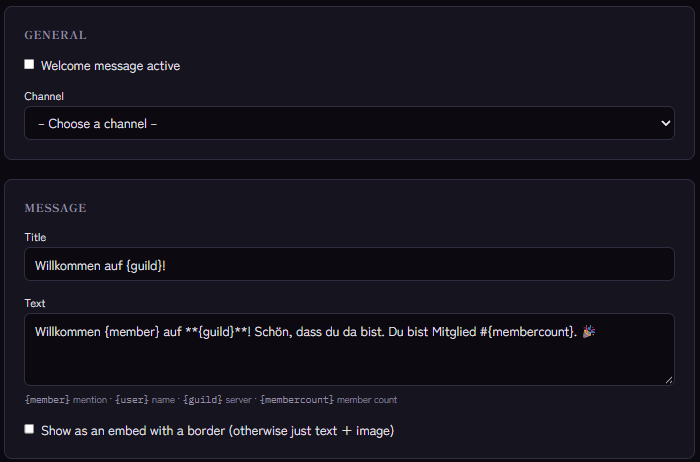
Step by step
- Open the dashboard, pick your server and go to the Welcome module.
- Choose the channel the bot should post the message in. A dedicated channel such as "welcome" that new members see right away works well.
- Write the text and the title. Placeholders make the message personal (see below).
- Design the banner: you can upload your own background (best directly in the dashboard, then it stays permanently) and place the avatar and the text directly in the preview by dragging. The text colour and the colour of the ring around the profile picture are adjustable.
- Decide whether the message appears as an embed (with a coloured border) or as plain text with an image.
- Switch the module on and save.
- Check the result with
/welcome test. The command posts a preview in the channel without anyone having to join.
Placeholders for personal texts
You can use these placeholders in the text and the title:
{member}mentions the person directly (they get notified).{user}uses their display name without a mention.{guild}is the name of your server.{membercount}is the current member count.
Example: "Welcome {member} to {guild}! You are member number {membercount}." Placeholders Kage does not know stay in the text unchanged instead of causing an error.
What Kage does on top
- Up-to-date avatar: If someone changes their profile picture shortly after joining, Kage refreshes the banner of the welcome message automatically (within 30 days).
- Channel permissions: If the bot lacks permissions in the target channel and has the permission to manage roles, it adds them itself. The result appears in the module's log.
- Commands: Everything can also be configured with slash commands, for example
/welcome channel,/welcome message,/welcome embed-styleor/welcome background.
Typical pitfalls
- Nothing appears: Check that the module is switched on and a channel is selected. The bot needs permission in the channel to view it, write, embed links and attach files (the banner is an image).
- The banner is missing: Without the "Attach Files" permission the bot cannot send the image.
- The background image is missing: Upload the image directly in the dashboard instead of using a link. With an upload, Kage stores the image permanently itself. The
/welcome backgroundcommand, in contrast, only saves the address, and Discord attachment links expire after a while. Kage keeps a temporary copy and keeps using it when the link stops working, and notes in the Logs tab that the image could not be refreshed. That copy is only a fallback and is not permanently backed up. - The module reports a problem: The Monitoring module checks your settings regularly and tells you when a channel was deleted or permissions are missing.
The counterpart: the goodbye message
The Leave module works like the welcome message, just for when someone leaves the server. It can be switched on independently. The setup is described in How to Set Up a Discord Goodbye Message with a Banner. If only your team should learn who left, the leave log helps.
For what comes after the greeting, read Automatically assigning roles.
If you want to build the whole server in one go, the Setup Assistant does it: it recommends modules and creates channels and roles from a template.
Related Kage features
- WelcomeIncluded in Basic
- LeaveIncluded in Basic
- MonitoringEnterprise
Related articles
More on this topic: Discord Welcome & Onboarding: Complete Setup Guide
More questions? Ask Kage AIAI
Describe what you need – Kage AI picks out the right guide and gives you the sources.
Try Kage on your server
Sign in with Discord, invite the bot and set up the modules in the dashboard. The Basic plan is free forever.