
How to Automatically Assign Roles in Discord
Assign Discord roles automatically: starter roles on join, roles after verification or levels, and the role-order pitfalls that break it.
Updated: 13 October 2026
Without a starter role, moderators have to hand every new member a role. That takes time, and in the meantime newcomers may not see channels they should. The Auto-Roles module does it automatically the moment someone joins.
Quick answer: Open Auto-Roles in the dashboard, choose the roles every new member should get and switch the module on. Important: the bot's role must sit above those roles in the role list.
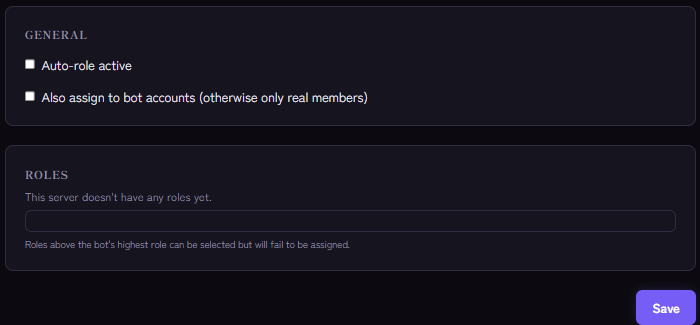
Step by step: starter role on join
- In Discord create the role every new member should get, for example "Member". Set which channels this role can see.
- Open the Auto-Roles module in the Kage dashboard.
- Under Roles pick one or several roles from the list.
- Decide whether the roles should also go to bot accounts ("Also assign to bot accounts"). By default bots do not get them.
- Switch on Auto-role active and save.
From the next join on, Kage assigns the roles automatically. Existing members do not get them retroactively: the module only acts on joins. It works independently of the welcome message and can be used with or without it.
The most important rule: role order
Discord only lets a bot assign roles that sit below its own highest role. In the server settings go to Roles and drag the "Kage" role above all roles the bot should assign. The bot also needs the Manage Roles permission. If the auto-role is higher than the bot's role, assigning fails.
Kage helps with this: the Monitoring module detects when an auto-role sits above the bot's role or no longer exists, and tells you how to fix it. If a configured role no longer exists, Kage skips it and assigns the others.
Other ways to assign roles automatically
"Automatic" does not have to mean "on join". Depending on the goal there are other building blocks:
- After confirming the rules: Verification gives newcomers the "real" role only after a click.
- After reaching a level: In the Levels & XP module you set level rewards. Whoever reaches a given level automatically gets a role.
- At the member's own request: With reaction roles or Role Panels members choose for themselves, for example their interests or platforms.
- Only for a limited time: With temporary roles a role expires after a set duration.
Tips from practice
- Never auto-assign permission roles. An auto-role should allow only what is necessary. Moderation or admin permissions never belong in a starter role.
- Combine it with verification. If newcomers should confirm the rules first, use verification instead of a full starter role: they first get a role with little access and the "real" role only after confirming.
- Plan interest roles separately. If members should pick topics themselves, use the role selection in onboarding.
If it does not work
The most common causes are the role order, the missing Manage Roles permission and a switched-off module. A complete checklist is in Discord bot not giving roles.
FAQ
Does this also work for members who are already on the server?
No, auto-roles only act when someone newly joins. For existing members you assign roles once yourself, for example through a role panel.
Can I assign several roles at once?
Yes, just pick several roles from the list.
What is the difference between auto-roles and reaction roles?
With auto-roles the bot assigns roles on join without any action by the member. With reaction roles the member decides by reacting to a message.
For an overview of all building blocks for the start, read Welcoming new members.
Related Kage features
- Auto-RolesIncluded in Basic
- VerificationIncluded in Basic
- Levels & XPFrom Premium
- Role PanelsFrom Premium
Related articles
More on this topic: Discord Roles Guide: How to Set Up and Manage Roles
More questions? Ask Kage AIAI
Describe what you need – Kage AI picks out the right guide and gives you the sources.
Try Kage on your server
Sign in with Discord, invite the bot and set up the modules in the dashboard. The Basic plan is free forever.