
How to Log Members Who Leave Your Discord Server
Find out who left your server and when – with join time, ID and roles in a private channel. Plus what exists for joins and where the limits are.
Updated: 13 October 2026
Whoever leaves often leaves nothing but a gap in the member list. Your team still wants to know: who was that, how long were they here, which roles did they have? For that Kage has a staff log for departures. It is not the public goodbye message, but a card for your team only.
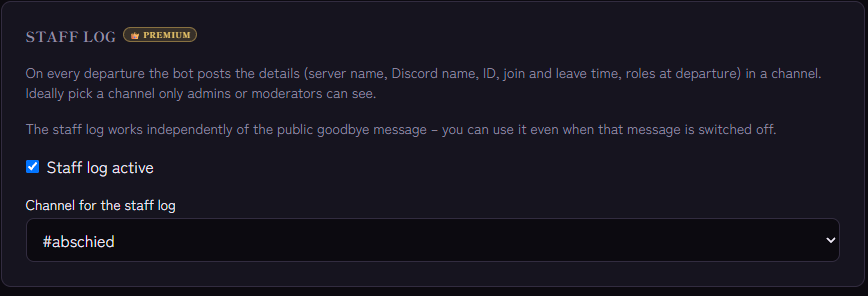
In short: Create a private channel for your team, open the Leave module in the dashboard, switch on Staff log active in the Staff log section and choose the channel. The staff log also works when the public goodbye message is switched off.
What the log contains
On every departure the bot posts a card with these details:
- the server name (display name) and the Discord name of the person,
- the username and the ID,
- the join time and the leave time, each with the date and a "X ago" note,
- the roles at the time of leaving, highest first. The card shows up to 25 roles and gives the remaining count if there are more.
Discord reports the departure itself without a reason. The bot therefore cannot tell whether someone left voluntarily or was removed. Kicks and bans you carry out with /mod also appear in the mod log.
Setting it up
- Create a text channel in Discord, for example
#leaves-team, and make it private. Personal data such as the ID belongs with the team only. - Give the bot View Channel, Send Messages and Embed Links there.
- Open the Leave module in the Kage dashboard.
- In the Staff log section, switch on Staff log active and choose the channel for the staff log.
- Save.
The staff log is tied to a plan. In the dashboard the section shows whether your server can use it, and the "Related Kage features" box further down shows the current assignment. Without a suitable plan the log stays silent.
What about joins?
There is no separate staff log for joins. This comes closest:
- The welcome message greets new members publicly in the channel. The module's log records that it was posted.
- Invite tracking shows whose invite someone came through and separates real, fake and departed invites.
- The audit log records deleted and edited messages as well as nickname and role changes, but not joins and departures.
Typical pitfalls
- No card appears: Is the switch on, a channel selected and does the plan fit? Only departures after switching it on are logged. Kage does not backfill earlier ones.
- The channel was deleted or the bot lacks permissions: This appears in the log of the Leave module. Choose a new channel or grant the missing permissions.
- Personal data: The log contains names and IDs. Restrict the channel to people who need it, and check what applies to your server under data protection law. This article does not replace legal advice.
FAQ
Is this the same as the goodbye message?
No. The goodbye message is public and meant for the community, the staff log is private and meant for moderation and administration. The two run independently. How the public message works is explained in How to Set Up a Discord Goodbye Message with a Banner.
Can I also see why someone left?
No. Discord does not provide a reason. The log only shows the time, the person's details and their roles.
Related Kage features
- LeaveIncluded in Basic
- Invite TrackingFrom Premium
- Audit LogIncluded in Basic
Related articles
More on this topic: Discord Moderation Guide: How to Keep Your Server Safe
More questions? Ask Kage AIAI
Describe what you need – Kage AI picks out the right guide and gives you the sources.
Try Kage on your server
Sign in with Discord, invite the bot and set up the modules in the dashboard. The Basic plan is free forever.