
How to Set Up Discord Server Onboarding with Role Selection
Guide new members through the start with server onboarding – with role selection, a completion role and a join survey you can evaluate.
Updated: 13 October 2026
Many servers have so many channels and roles that newcomers do not know where to begin. Server onboarding guides each new member personally through the start: a short greeting, a role selection, a "Done" button and, if you like, a question about how the person found you.
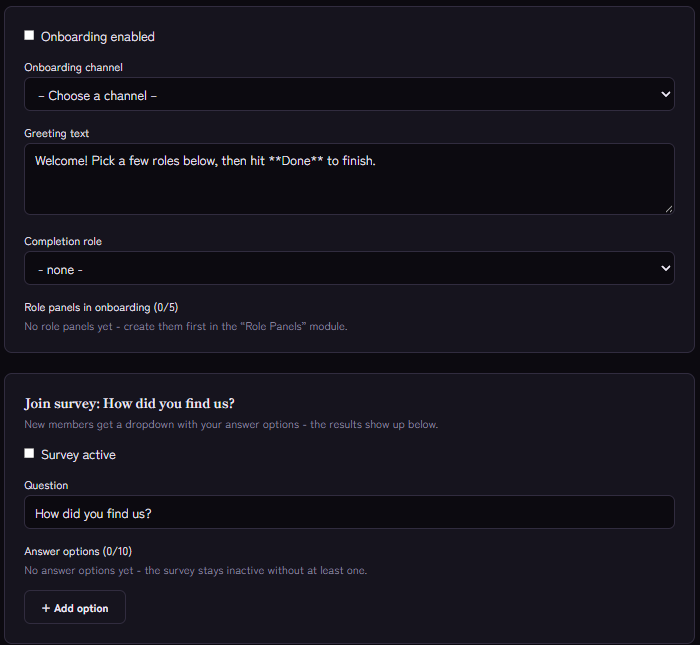
What it looks like for new members
- A new member joins. Kage posts a greeting in the onboarding channel.
- Below it are the role selections you configured, for example interests, games or languages.
- Optionally a dropdown appears with the question "How did you find us?" and your answer options.
- With the "Done" button the person finishes the start. They receive the completion role, and the onboarding message disappears again.
The Done button belongs to exactly that person: other members cannot click it for them. It also keeps working after a restart of the bot.
Setup
Onboarding does not build its own role selections. It uses the selections from the Role Panels module. So proceed in this order:
- Create role panels: In the Role Panels module create the selections newcomers should see (as buttons or a dropdown).
- Choose the onboarding channel: Open the Server Onboarding module and choose the channel where the greeting appears.
- Write the greeting: Adjust the intro, for example "Welcome! Pick a few roles, then click Done."
- Add panels: Choose the role panels that should be shown in onboarding.
- Set the completion role: Choose the role someone gets after clicking "Done", for example "Member".
- Switch the module on and save.
Alternatively the basic setup also works with /onboarding setup and /onboarding add-panel.
The join survey
With the survey you find out how new members come to you. You write the question yourself and define the answer options, for example "Friends", "YouTube", "Server list" or "Other". Because the answers come from a fixed choice, they can be evaluated: in the dashboard you see the results in an overview instead of reading free text.
Without at least one answer option Kage does not show the survey at all, so no empty dropdown appears.
Tips
- Keep the choice short. Two or three role panels are enough for the start. If people see too much at once, they click nothing.
- Give the completion role a purpose. Use it as access to the actual channels or as a sign of "has settled in".
- Combine it with other building blocks. Onboarding replaces neither verification nor the welcome message; it complements them.
An overview of all building blocks is in Welcoming new members.
Related Kage features
- Server OnboardingFrom Premium
- Role PanelsFrom Premium
Related articles
More on this topic: Discord Welcome & Onboarding: Complete Setup Guide
More questions? Ask Kage AIAI
Describe what you need – Kage AI picks out the right guide and gives you the sources.
Try Kage on your server
Sign in with Discord, invite the bot and set up the modules in the dashboard. The Basic plan is free forever.