
How to Set Up Member Verification in Discord
Set up button verification with an Unverified and a Verified role, a minimum account age and a log of denied attempts.
Updated: 13 October 2026
On publicly advertised servers, accounts often join only to spread ads. Verification makes sure newcomers confirm the rules first before they see the rest of the server. With Kage it takes a single button.
How the flow works
- New members automatically get the Unverified role when they join.
- They only see the verification channel with a message and a button, for example "I agree ✅".
- With one click they receive the Verified role and lose the Unverified role.
- From then on they see the remaining channels.
Setup in four steps
- Create roles: Create the roles "Unverified" and "Verified" in Discord (the names are up to you).
- Set channel permissions: Allow the Unverified role to see only the verification channel and deny it all other channels. Verified members see the normal channels. You set this in Discord – Kage only assigns and removes the roles.
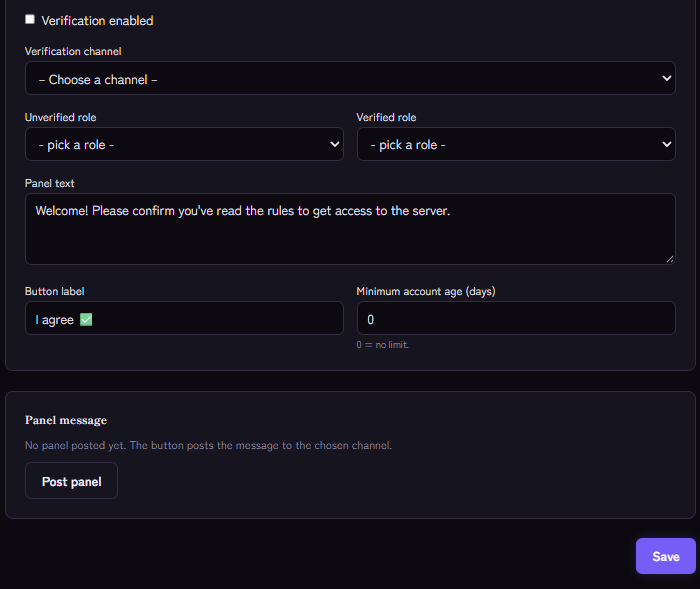
- Configure the module: Open the Verification module in the dashboard and choose the verification channel and both roles. Adjust the message and the button label.
- Post the panel: Publish the message with the button in the verification channel. You can do this in the dashboard or with
/verification setup. If you change the settings later, you update the same message instead of posting a new one.
The button keeps working after a restart of the bot.
Minimum age of the Discord account
With the minimum age in days field you can require that the Discord account is at least that old. Anyone too new gets a clear message when clicking and is not verified. This keeps freshly created throwaway accounts out.
Log of verifications
If the Audit Log module is set up with a log channel, Kage records there who verified successfully and who was denied because their account was too new. That way you keep an overview without checking each person by hand.
Good to know
- Role order: The Kage role must be above "Unverified" and "Verified" in the role list, otherwise the bot cannot assign them. If the button reports an error, this is usually the cause.
- No captcha: A button stops simple mass joins but is not protection against every attack. For raids, the Anti-Raid module helps, which you can switch on in addition: How to stop Discord raids.
- Existing members: Verification applies to newcomers. Anyone already on the server keeps their roles.
If newcomers should pick roles after verifying, onboarding helps. All building blocks for the start at a glance: Welcoming new members.
Related Kage features
- VerificationIncluded in Basic
- Audit LogIncluded in Basic
- Anti-RaidIncluded in Basic
Related articles
More on this topic: Discord Welcome & Onboarding: Complete Setup Guide
More questions? Ask Kage AIAI
Describe what you need – Kage AI picks out the right guide and gives you the sources.
Try Kage on your server
Sign in with Discord, invite the bot and set up the modules in the dashboard. The Basic plan is free forever.