
How to Automate a Discord Server with Rules: IF, UNLESS, THEN
Event-triggered automation for Discord: triggers, conditions and actions explained, with examples and limits.
Updated: 13 October 2026
With Automations you build your own rules following the pattern IF something happens, UNLESS conditions apply, THEN run actions. You do not need any code.
Quick answer: In the dashboard open Automations, click + New rule, choose a trigger (IF), any number of conditions (UNLESS, all must match) and any number of actions (THEN, in order), and save.
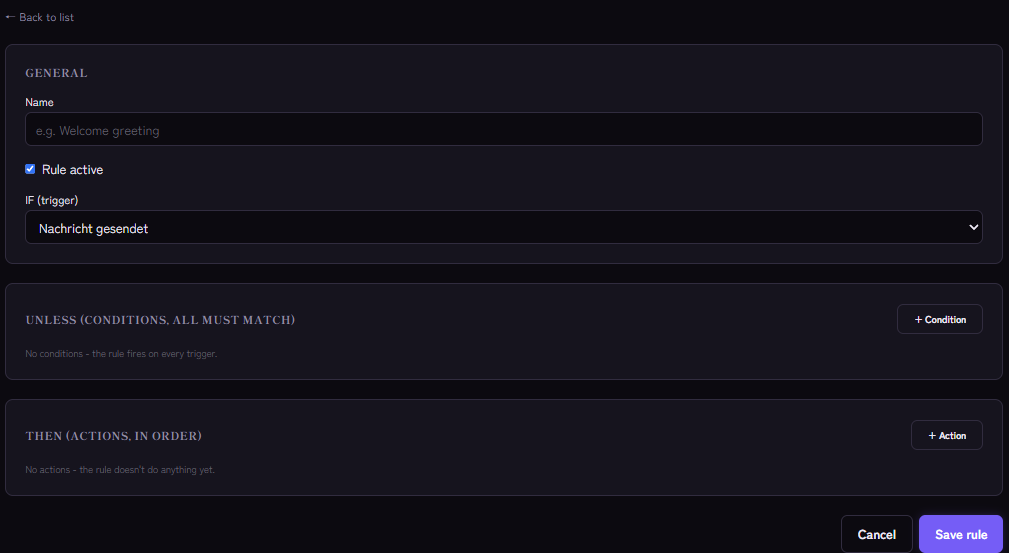
The building blocks
Triggers (IF)
- Message sent
- Member joined
- Member left the server
- Reaction added
- Schedule (recurring): daily at a time, weekly on a weekday or every N minutes (at least 15). Times are in UTC.
Conditions (UNLESS)
Depending on the trigger you can choose among others: message contains text, starts with text or matches a pattern (regex); member has a role or does not have it; channel is; emoji is; random chance in percent; account younger than N days; time between (UTC); member count above or below a value. With no condition the rule fires on every trigger.
Actions (THEN)
Send message, send direct message, add or remove role, grant temporary role (hours), add reaction, send embed template, log to a channel, delete or pin the triggering message, award XP and start a thread on the message. In texts placeholders such as {user} and {guild} are available.
Examples
- Greeting with a role: IF member joined, THEN assign the "New" role and send a message in
#welcome. - Remove advertising: IF message sent, UNLESS member has role "New" and the message contains "discord.gg/", THEN delete the message and log it to the log channel. (All conditions must match.)
- Weekly reminder: IF schedule (Monday 18:00 UTC), THEN send an embed template.
- Random fun: IF message contains "gg", UNLESS random chance 20%, THEN add a reaction.
Safety and limits
- Bots never trigger. Messages and members from bots trigger no rule; this safety rule is fixed and cannot be switched off. That prevents endless loops.
- Only active rules fire, and only in an active module. With Pause you stop a rule without deleting it. The dashboard shows how often a rule ran and when last.
- Test in a separate channel. A rule with a delete action can hit more than intended.
- The number of rules depends on the plan (shown as "Rules (n/max)").
- For fixed answers on request custom commands are simpler, for pure schedules Auto Messages.
If it does not work
- The rule does not fire. Are module and rule active? Do all conditions match? The trigger must not come from a bot.
- Wrong time. Schedule times are UTC.
- An action fails. Check the bot's permissions (Manage Roles, Manage Messages) and the role order.
FAQ
Can a rule run several actions?
Yes, the actions run in order.
Can I start from a template?
Yes, in the rule editor you can choose a template and adjust it.
Related Kage features
- AutomationsFrom Premium
- Embed BuilderFrom Premium
Related articles
More on this topic: Discord Automation: How to Automate Server Management
More questions? Ask Kage AIAI
Describe what you need – Kage AI picks out the right guide and gives you the sources.
Try Kage on your server
Sign in with Discord, invite the bot and set up the modules in the dashboard. The Basic plan is free forever.