
How to Create Discord Embed Messages
Design embed messages with colours, images and buttons and post or live-update them from the dashboard.
Updated: 13 October 2026
Embeds are the designed cards you know from bots: with a colour bar, title, images and fields. Normal users cannot send them. With Kage's embed builder you design them in the dashboard, see a preview and send them to any channel.
Quick answer: In the dashboard under Embeds create a New template, design it with the live preview, save and send it to a channel with Send.
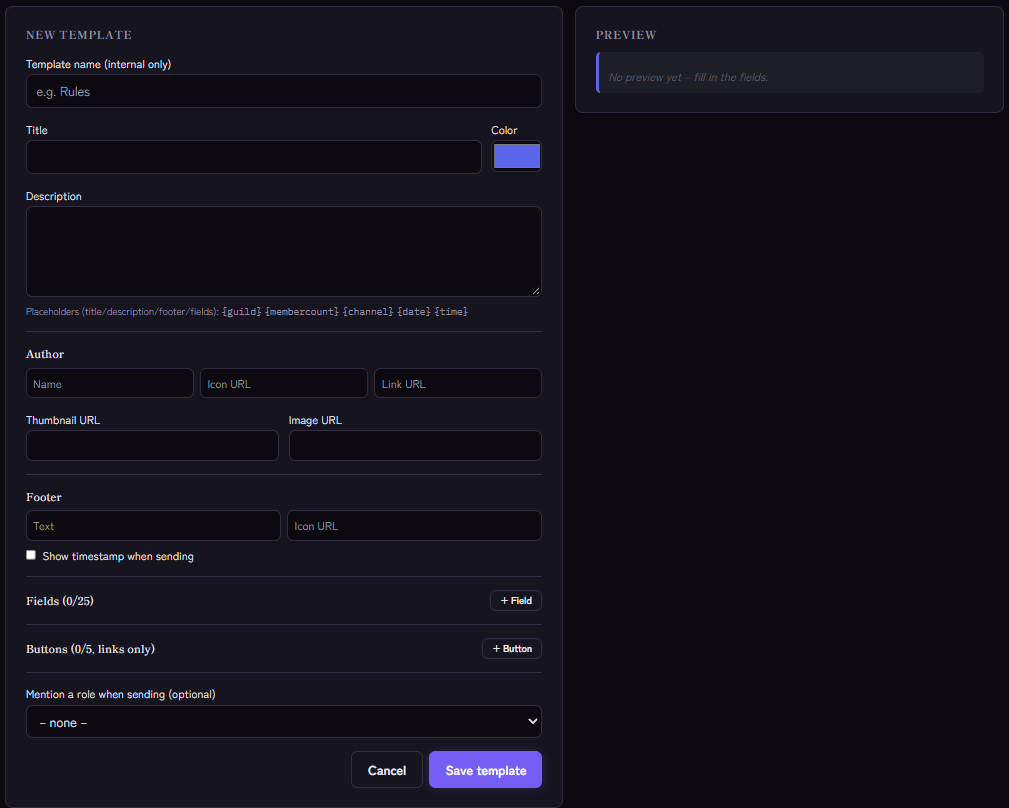
Designing a template
Under + New template you set:
- Template name (internal only), Title, Color and Description.
- Author with icon and link URL, Thumbnail URL, Image URL and Footer.
- Fields (name and value, optionally side by side as Inline).
- Buttons (links only) with a label. As the target use a fixed URL or a tracked link.
- Optionally Show timestamp when sending and Mention a role when sending.
In title, description, footer and fields placeholders such as server name and member count work; the form lists the available ones.
On the right you see the Preview while you type.
Sending and keeping it up to date
- Send: choose the channel and send the template. You can send it again at any time.
- Keep live (editable): Kage remembers the message so you can update it later. Refresh now writes the current version into the same message. With Auto-refresh every … min this happens automatically.
- Pin in Discord: pins the message when sending; later changeable with Pin/Unpin.
- Load an existing message: paste a message link (in Discord right-click › "Copy Message Link"), edit the content and update the same message.
Tracked links
You create short links that count clicks at the creator: in the dashboard under Social Alerts, in the creator's card in the Tracked link section. In the embed editor you can pick one for a button instead of a fixed URL. Only the number and time of clicks are stored, no personal data.
Tips
- Little text, clear colour. An embed works when it is short.
- Reuse templates: rules, announcements and welcome cards can be sent again at any time.
- Send automatically: An embed template can also be sent as an action by an automation.
If it does not work
- The bot cannot send. It needs Send Messages and Embed Links in the channel.
- An image is missing. The URL must be publicly reachable and directly an image.
- The limit is reached. The number of templates depends on the plan.
FAQ
Can I build buttons with actions?
The buttons are pure link buttons. For role-selection buttons use Role Panels.
Can I change an embed afterwards?
Yes, with "Keep live" or by loading the message via its link.
Related Kage features
- Embed BuilderFrom Premium
Related articles
More on this topic: Discord Automation: How to Automate Server Management
More questions? Ask Kage AIAI
Describe what you need – Kage AI picks out the right guide and gives you the sources.
Try Kage on your server
Sign in with Discord, invite the bot and set up the modules in the dashboard. The Basic plan is free forever.