
How to Create a Starboard in Discord
Highlight your community's best messages automatically: how a Discord starboard works and how to set one up with Kage Bot.
Updated: 14 October 2026
A starboard collects the messages your community likes best in a channel of their own. Members react with an emoji (⭐ by default), and once a message reaches a certain number Kage copies it into the highlight channel.
Quick answer: In the dashboard open the Starboard module, switch on Starboard active, choose the Highlight channel, an emoji and a Threshold. Default: ⭐ and 3 reactions.
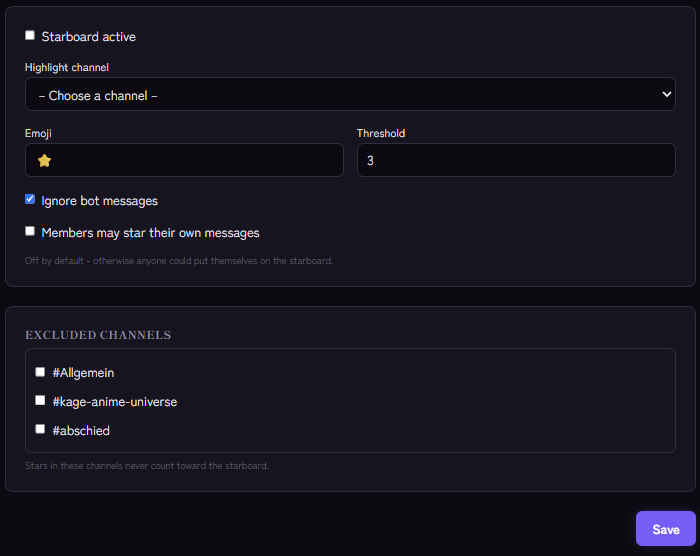
Setting it up
- Create a channel for the highlights, for example
#highlights. The bot must be allowed to write there. - Open the Starboard module and switch on Starboard active.
- Choose the Highlight channel.
- Set the Threshold, meaning how many reactions a message needs. For small servers 2 or 3 is enough, for large ones a higher value.
- Decide on the options:
- Ignore bot messages (on by default).
- Members may star their own messages (off by default, otherwise anyone could put themselves on the starboard).
- Excluded channels: stars in these channels never count, for example in team or age-restricted channels.
- Save.
If the number of reactions later drops below the threshold, Kage removes the message from the starboard again automatically.
Leaderboard
Under Leaderboard (most starred messages) the dashboard shows whose messages made it to the starboard most often. In Discord the /starboard-leaderboard command gives the same overview.
Tips
- Pick the emoji to suit the community. Any emoji is possible; what matters is that everyone knows what it means.
- Check the highlight channel for privacy. Kage copies content into another channel. Decide which channels to exclude.
- Communicate it. A starboard works when members know it: a short note in the rules or welcome text is enough.
If it does not work
- Nothing appears in the highlight channel. Check that Starboard active is on, the threshold was reached, the channel is not excluded and the bot may write in the highlight channel.
- Own stars do not count. That is the default; change it if needed.
- Bot messages are missing. That is also the default (ignore bot messages).
Works well with
The starboard fits well with other participation features: suggestions collect the community's ideas, and the level system rewards active members on top.
FAQ
Does it work with the server's custom emojis?
The emoji is freely selectable. After saving, test with a message to see whether the reaction is counted.
What is the difference to pinning?
Pinning keeps a message in the same channel. The starboard collects messages from many channels in one place, based on community reactions.
Related Kage features
- StarboardFrom Premium
Related articles
More on this topic: How to Build an Active Discord Community
More questions? Ask Kage AIAI
Describe what you need – Kage AI picks out the right guide and gives you the sources.
Try Kage on your server
Sign in with Discord, invite the bot and set up the modules in the dashboard. The Basic plan is free forever.