
How to Create a Suggestion Channel in Discord
Collect and review member ideas: set up a suggestion channel with voting and status updates on Discord.
Updated: 14 October 2026
Taking suggestions seriously gives members a say. With the Suggestions module members submit ideas by command, Kage posts them with voting reactions in a channel, and your team marks the status.
Quick answer: In the dashboard choose a Suggestions channel and switch the module on. Members use/suggestion; moderators set the status with/suggestion-status.
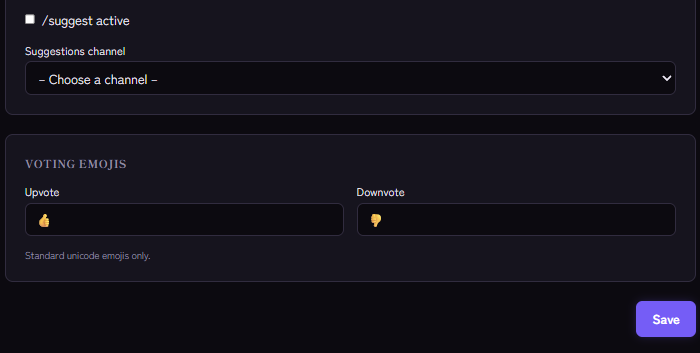
Setting it up
- Create a channel, for example
#suggestions. The bot needs permission there to write and to add reactions. - Open the Suggestions module in the dashboard and switch it on.
- Choose the Suggestions channel.
- Under Voting emojis set the Upvote and Downvote emoji. Only standard Unicode emojis are possible.
- Save.
How it works
- A member enters
/suggestionwith their text. Kage posts the suggestion as a card in the channel and attaches the two voting emojis. The member receives a link to their suggestion. - Everyone votes with the reactions.
- A moderator with the "Manage Messages" permission sets the status with
/suggestion-status: Accepted, Rejected, In progress or Reset (open). They give the message ID of the suggestion; the ID is in the link the member gets after submitting.
Tips
- Answer visibly. A suggestion channel lives on feedback. Set the status promptly and briefly explain rejections.
- Set rules, such as "one suggestion per topic" and "no insults".
- Collect, do not debate. Discussions belong in a thread or another channel.
- For fundamental questions polls fit better than individual suggestions.
If it does not work
- "Not set up": the module is not active or the channel is missing.
- The suggestion does not appear. Check the bot's permissions in the channel (send messages, add reactions).
- The emoji is rejected. Only standard Unicode emojis are allowed.
Works well with
For anonymous feedback there are confessions, and if you want to motivate members to take part, giveaways offer ideas.
FAQ
Can all members submit suggestions?
Yes, any member can use /suggestion as long as the module is set up.
How do I find the message ID?
It is in the link the member receives after submitting. Alternatively enable developer mode in Discord and copy it from the message menu.
Related Kage features
- SuggestionsIncluded in Basic
Related articles
More on this topic: How to Build an Active Discord Community
More questions? Ask Kage AIAI
Describe what you need – Kage AI picks out the right guide and gives you the sources.
Try Kage on your server
Sign in with Discord, invite the bot and set up the modules in the dashboard. The Basic plan is free forever.