
How to Set Up Discord Keyword Alerts
Notify your team as soon as a keyword appears in a channel: with role ping, fixed alert channel and a cooldown against spam.
Updated: 14 October 2026
A word like "ban appeal", "bug" or the name of your game should make someone look up, without the team reading every channel. Keyword Alerts notify your team as soon as the keyword appears.
Quick answer: In the dashboard open Keyword Alerts, switch on Keyword Alerts enabled, click + Add keyword, enter the keyword, choose channel, alert channel and role, and save.
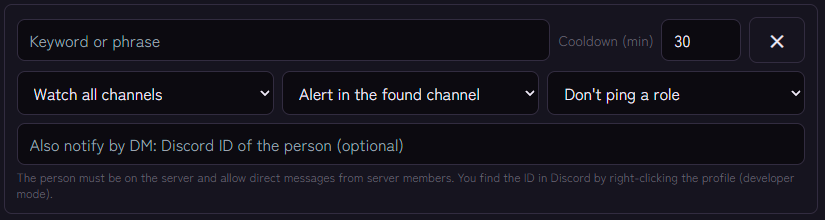
Setting it up
- Open the module and switch on Keyword Alerts enabled.
- Click + Add keyword and enter the keyword or phrase (up to 120 characters).
- Choose where to watch: Watch all channels or one specific channel.
- Choose where the alert appears: Alert in the found channel or a fixed channel, for example a team channel.
- Optional: a role that is pinged with every alert (otherwise Don't ping a role).
- Optional: enter the Discord ID of a person below who also receives every alert by DM. The person must be on the server and allow direct messages from server members. You find the ID in Discord by right-clicking the profile when developer mode is switched on.
- Set the cooldown in minutes (default 30, from 1 to 1440).
- Save.
Alternatively an administrator creates entries with /keywordalert add and removes them with /keywordalert remove. The number of keywords depends on the plan; the dashboard shows the current state.
How the keyword is detected
- Upper and lower case do not matter.
- A single word is only found as a whole word. "gvg" does not trigger on "gvging".
- A phrase with spaces is searched as a piece of text, for example "ban appeal".
- Bots are never evaluated.
The alert is an embed with the keyword, the message text (shortened), the author, the channel and a link to the message.
The cooldown
The cooldown applies per keyword: after an alert that keyword stays quiet for the set time, even if it keeps appearing. That protects your team from a flood during a heated discussion. The timestamp lives only in memory; after a bot restart a keyword can therefore report earlier than expected.
Tips
- A fixed alert channel for the team. With "Alert in the found channel" the message text appears in the same, possibly public channel. A private team channel is usually better.
- Few, clear keywords. Overly general words create noise.
- Ping the role sparingly. Whoever is pinged on every hit eventually tunes out.
- Deleting is a different tool. Keyword Alerts only report. Block unwanted words with the word filter.
If it does not work
- No alert arrives. Are the module and the entry active, is the keyword spelled correctly, and is the cooldown possibly still running?
- The alert does not show in the team channel. The bot needs permission there to view, write and embed links, and for a role ping the role must be mentionable or the bot must have permission to mention it.
- The keyword is not found inside a word. Single words are only recognised as whole words. Add the word forms individually if needed. The word filter does recognise word parts, but it deletes the message instead of only reporting.
Works well with
If a hit needs a response, the moderation log helps you trace what happened. For cases that can't be settled in the chat, there is the ticket system.
FAQ
Does this replace Discord AutoMod?
Not entirely. AutoMod can block keywords and send an alert to a channel. Keyword Alerts add role ping, a cooldown per keyword and restriction to one channel.
Can I be notified by DM?
Yes. Enter the person's Discord ID on the keyword. They receive the alert as a private message in addition to the message in the channel. If the person does not allow direct messages from server members or is not on the server, no DM arrives. The alert in the channel still appears.
Is the message deleted?
No. The alert does not change the message.
Related Kage features
- Keyword AlertsFrom Premium
Related articles
More on this topic: Discord Server Monitoring: Catch Problems Early
More questions? Ask Kage AIAI
Describe what you need – Kage AI picks out the right guide and gives you the sources.
Try Kage on your server
Sign in with Discord, invite the bot and set up the modules in the dashboard. The Basic plan is free forever.