
How to Set Up a Discord Mod Log Channel
Set up a mod log channel in which kicks, bans, warnings and automatic filter hits become visible to your team.
Updated: 13 October 2026
When several moderators are at work, the team needs to know who warned or removed whom, and why. That is what the mod log is for: a channel in which Kage writes every moderation action as a short card.
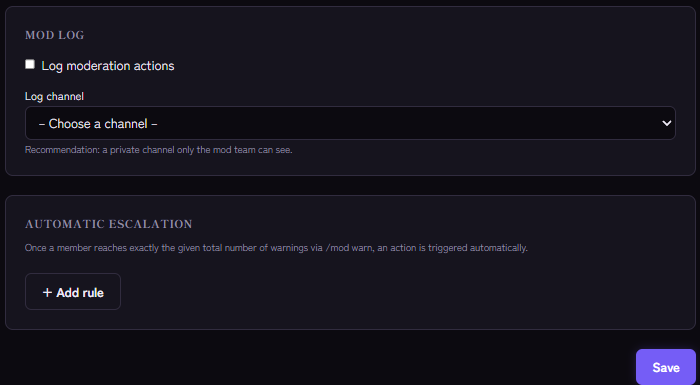
Quick answer: Create a private channel for your team, open the Moderation module in the dashboard, switch on Log moderation actions and pick the channel as the Log channel.
What ends up in the mod log
- Actions taken with the
/modcommands: warning, kick, ban, softban, timeout, purge and locking or unlocking channels. Each card names the affected member, the moderator and the reason. Unbans, lifted timeouts and slowmode changes do not appear in the log; unbans and lifted timeouts are, however, in the member's case history. - Hits from the Word Filter.
- Hits from Anti-Spam.
- Automatic penalties from the escalation rules of the warning system.
Anti-Raid, in contrast, uses its own optional log channel that you set in the Anti-Raid module. Deleted and edited messages belong in the Audit Log, which also has its own channel.
Step by step
- In Discord create a text channel, for example
#mod-log, and make it private so only your team sees it. - Allow the bot View Channel, Send Messages and Embed Links in this channel.
- In the Kage dashboard open the Moderation module.
- In the Mod log section switch on Log moderation actions.
- Under Log channel pick your channel. The dashboard recommends a private channel that only the mod team can see.
- Save.
The Log moderation actions switch only controls the log. The /mod commands themselves work without a log set up, so a kick never fails because of missing settings.
Mod log or audit log?
The two terms are often mixed up:
- Kage's mod log shows deliberate moderation actions with moderator and reason.
- Kage's Audit Log module records general server activity such as deleted messages.
- Discord's own audit log (in the server settings) records administrative actions such as role and channel changes, but only for a limited time.
To trace everything, use all three.
If it does not work
- Nothing appears in the channel. Check that Log moderation actions is on, a channel is selected and the bot may write there.
- The channel was deleted. Pick a new log channel in the dashboard. While the old one is missing, Kage cannot log anywhere.
- The case history is empty. A member's history (
/mod history) does not depend on the log channel. It is always stored.
FAQ
Can members see the mod log?
Only if you give them access to the channel. Keep it private, since it contains names and reasons.
How long are entries kept?
The cards stay in the Discord channel until you delete them. The case history in the bot stays until a case is removed with /mod case-remove.
Related Kage features
- ModerationIncluded in Basic
- Anti-SpamIncluded in Basic
- Word FilterIncluded in Basic
- Anti-RaidIncluded in Basic
Related articles
More on this topic: Discord Moderation Guide: How to Keep Your Server Safe
More questions? Ask Kage AIAI
Describe what you need – Kage AI picks out the right guide and gives you the sources.
Try Kage on your server
Sign in with Discord, invite the bot and set up the modules in the dashboard. The Basic plan is free forever.