
How to Stop Discord Raids and Spam Bots
Protect your Discord server from raids and spam bots with a join-rate trigger, a minimum account age and honeypot channels, plus honest limits and common mistakes.
Updated: 13 October 2026
A raid usually starts quietly: within minutes dozens of accounts join at once and flood channels, DMs or voice channels with ads, abuse or links. A second, more common variant is individual spam bots that join through the day and leave advertising in the first channels they can reach. The Anti-Raid module covers both.
Quick answer: Anti-Raid has three independent triggers: too many joins in a short time, Discord accounts that are too young and a decoy channel (honeypot) in which any message counts as a bot signal. When one fires, Kage kicks or bans automatically, or only logs it.
What Discord offers natively
Discord has safety settings that let you raise the verification level for new members. That makes throwaway accounts harder but does not stop a coordinated raid that meets the requirement. Which further options your server shows depends on the server type and version, so check your server settings.
A bot can additionally react to behaviour: how fast accounts join, how old they are and whether they write in a decoy channel.
Setting up Anti-Raid with Kage
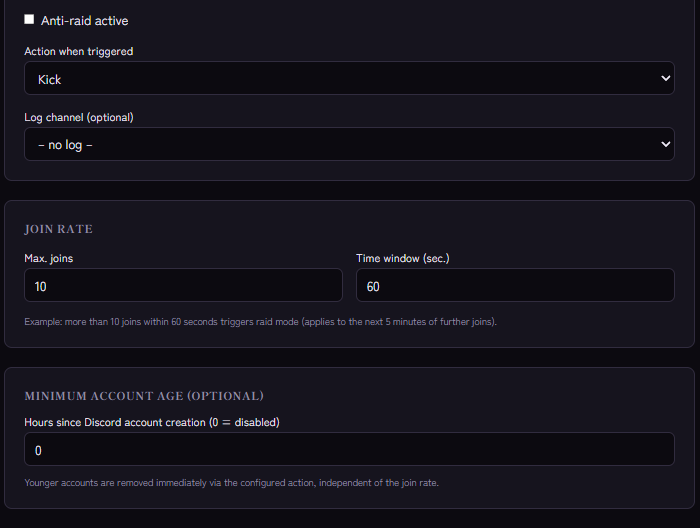
Open the Anti-Raid module in the dashboard and switch on Anti-raid active. Then set up the three triggers. You can use one, two or all three.
1. Join rate
Under Join rate you set Max. joins and Time window (sec.). The dashboard example: more than 10 joins within 60 seconds triggers raid mode. It applies to the next 5 minutes of further joins, and while a raid continues it keeps extending.
Under Action when triggered choose Kick, Ban or Log only. Start with "Log only" to see whether real join waves (after a stream or an announcement, for instance) are mistaken for raids.
2. Minimum account age
Under Minimum account age enter how many hours old a Discord account must be at least (0 means disabled). Younger accounts are removed immediately with the chosen action, independent of the join rate. Choose the value carefully: genuine newcomers who have just signed up for Discord are turned away too.
3. Honeypot (decoy channel)
Spam bots usually write in the first channels they reach. A honeypot is a decoy channel at the very top of the channel list: any message in it counts as an unmistakable bot signal. Kage deletes the message and runs the honeypot action (default: ban). With a ban, Kage also deletes all of the person's messages from the last hour, so advertising in other channels disappears as well. A kick, in contrast, only deletes the message in the decoy channel. There is a decoy for text and one for voice channels; with the voice honeypot, simply joining triggers the action.
To set it up properly:
- Create an inconspicuous text channel and a voice channel, ideally at the very top without a category.
- Set View Channel to allowed for
@everyonebut denied for your member role. That way only new accounts without the member role see the channel, real members never do. - Do not turn View Channel off for
@everyone. Anyone who cannot see a channel cannot write in it, so the trap would never fire. - Post a warning in the channel, for example "Never write here – leads to a ban".
- In the dashboard pick the channel under Honeypot channel as the decoy, switch on Honeypot active and choose the action.
If you prefer it done for you: in the dashboard pick your member role and click Set up automatically. Kage then creates a text and a voice channel with the right permissions, a warning message and the honeypot already enabled.
Permissions and role order
For kicks and bans the bot needs Kick Members or Ban Members. Its role must sit above the roles of the accounts it should remove. No bot can act against members with higher roles.
With the Log only action Kage does not remove anyone. You just get an entry in the log channel you set under Log channel (optional).
If it does not work
- The honeypot does not fire. Usually View Channel was turned off for
@everyone, so nobody sees the channel. Also check that Honeypot active is on and the right channel is selected. - A moderator wrote in the honeypot. The decoy channel makes no exceptions for humans. Anyone who is not a bot and writes there triggers the action, provided the role order allows it. Test with a second account.
- Raid mode fires during events. Raise the number of allowed joins or temporarily use "Log only" for big events.
- Kick or ban does not work. Check the bot's permission and the role order. If a permission is missing, Kage notes it but cannot run the action.
- Bots you invited yourself get kicked. That does not happen: Anti-Raid ignores bot accounts on join.
Protecting your server from harmful bots
Anti-Raid fends off spam accounts and mass joins. It cannot stop an administrator from inviting a harmful bot. Basic rules help: only add bots from trusted sources, give them only the permissions they need, keep the number of people with "Manage Server" small and review role and permission changes in the Audit Log.
FAQ
Kick or ban: which is better?
A kick leaves the account able to come back with a new invite. A ban does not. For the honeypot, ban is the default because it produces almost no false alarms. For join rate and account age a kick is the more cautious choice.
How long does raid mode last?
Once triggered, the action applies to every further join in the next 5 minutes, and every further join during raid mode extends it.
Can I combine this with verification?
Yes, and it makes sense. With verification newcomers only see the rest of the server after confirming, and Anti-Raid catches mass joins before that.
Related Kage features
- Anti-RaidIncluded in Basic
- VerificationIncluded in Basic
- ModerationIncluded in Basic
- Audit LogIncluded in Basic
Related articles
More on this topic: Discord Moderation Guide: How to Keep Your Server Safe
More questions? Ask Kage AIAI
Describe what you need – Kage AI picks out the right guide and gives you the sources.
Try Kage on your server
Sign in with Discord, invite the bot and set up the modules in the dashboard. The Basic plan is free forever.