
How to Automatically Delete Messages in Discord
Delete old messages in Discord channels on a schedule with Kage Auto Cleanup: filters for bots, links, keywords or single members, and all of its limits.
Updated: 13 October 2026
Some channels fill up faster than anyone can clean them: bot commands, looking-for-group posts, announcements that are worthless after a day. With Auto Cleanup Kage deletes old messages in a channel automatically, on the schedule you set.
Quick answer: In the dashboard create one rule per channel: the age (in hours) after which messages are deleted, how often it runs (hourly, daily or weekly) and which messages are affected. Pinned messages always stay.
What Discord offers natively
Discord has no built-in feature that automatically deletes old messages in a text channel after a set time. By hand you can remove messages one by one or in groups with a bot command. This module takes over exactly that routine.
Setting up a rule
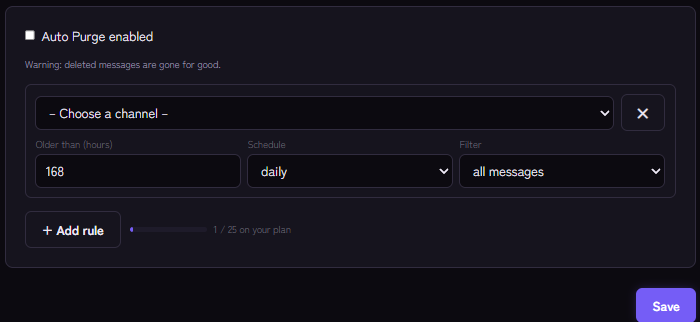
- In the Kage dashboard open the Auto Cleanup module and switch on Auto Purge enabled.
- Add a rule with + Add rule and choose the channel.
- Under Older than (hours) enter how old a message must at least be before it is deleted. 24 hours deletes everything older than a day.
- Under Schedule choose hourly, daily or weekly.
- Under Filter choose which messages are affected:
- all messages,
- bot messages,
- human messages,
- messages with links,
- messages with a keyword,
- messages from a specific user (by user ID).
- Save. The dashboard warns you itself: deleted messages are gone for good.
You can also manage rules by command: /autopurge add creates a rule, /autopurge list shows all rules with their ID, /autopurge remove deletes a rule. You need the "Manage Messages" permission for that.
How Auto Cleanup works
- Kage checks every five minutes whether a rule is due. How often it actually runs is set by the schedule.
- Per run and rule at most 300 messages are deleted. In a very full channel Kage therefore cleans up over several runs.
- Pinned messages are skipped.
- Messages less than two weeks old are deleted in bulk. Older messages are deleted one by one, which is slower.
- The rules apply to regular text channels.
The bot needs Manage Messages and Read Message History in the channel.
Good use cases
- Bot channel: delete bot messages after 24 hours so the channel stays readable.
- Looking for group: delete all messages after 12 or 24 hours because requests go stale quickly.
- Channel without links: delete messages with links after a short time. If links should vanish immediately, the Word Filter fits better.
- Voting or event channels: clear weekly after the event.
Do not put important channels such as rules or announcements into a purge rule. Use pinning for important messages.
If it does not work
- Nothing is deleted. Check that Auto Purge enabled is on, that the messages are old enough, that the filter matches and that the bot has the required permissions in the channel. Keep in mind that a rule only runs on its schedule: a daily rule deletes at most once a day.
- The channel stays full. With very many messages each run deletes only part of them. The next runs clear the rest.
- The module is paused. Auto Cleanup is one of the modules tied to a plan. If the plan lapses, the module rests until it applies again. The "Related Kage features" box below shows the current assignment.
FAQ
Can I restore deleted messages?
No, they are gone for good. If you want to keep content you need a log (see Setting up a logging channel) or must back it up first.
Does this also delete messages in threads or voice channels?
The rules apply to regular text channels.
Can I create several rules for one channel?
The dashboard is designed for one rule per channel. For different requirements it is best to use different channels.
Related Kage features
- Auto CleanupFrom Premium
- ModerationIncluded in Basic
- Audit LogIncluded in Basic
Related articles
More on this topic: Discord Moderation Guide: How to Keep Your Server Safe
More questions? Ask Kage AIAI
Describe what you need – Kage AI picks out the right guide and gives you the sources.
Try Kage on your server
Sign in with Discord, invite the bot and set up the modules in the dashboard. The Basic plan is free forever.