
How to Create Reaction Roles in Discord
Create reaction roles on Discord: post a message, map emojis to roles and avoid the typical mistakes with emojis and role order.
Updated: 13 October 2026
Members should pick roles for themselves: games, interests, notifications. Reaction roles are the classic way to do it. Emojis sit under a message, and whoever clicks one gets the matching role. Taking the reaction back removes the role again.
Quick answer: In the dashboard under Reaction Roles create a panel: pick the channel and a title, map emojis to roles and click Create & post panel. The bot's role must sit above the roles it assigns.
Reaction roles or Role Panels?
Kage offers two ways for self-selection:
- Reaction roles (this article): The simplest variant. One message with emojis, nothing more.
- Role Panels: Buttons or a dropdown menu with extra rules, such as "only one role at a time", a maximum, time-limited roles or a minimum level.
If you just want to offer several roles for free choice, reaction roles are enough. If you need rules or want a more modern look, use Role Panels.
Step by step
- Create the roles members should be able to choose in Discord and check their order (see below).
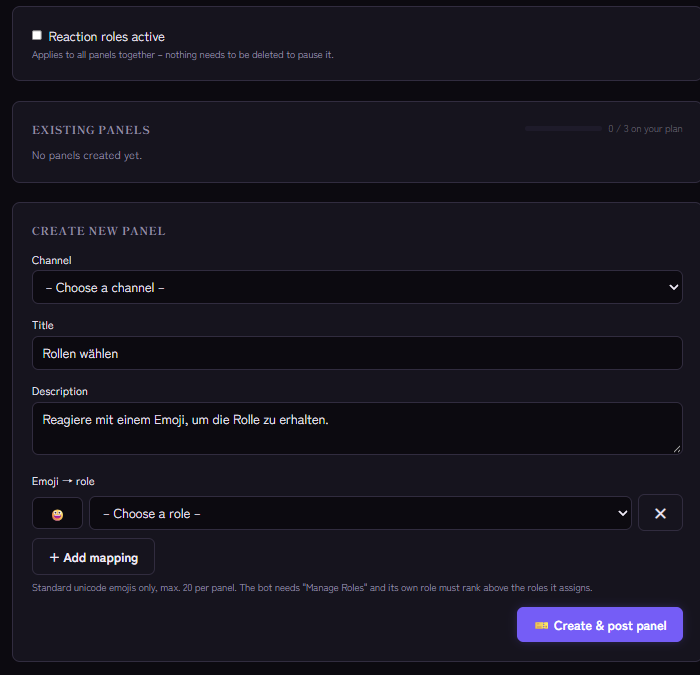
- Open the Reaction Roles module in the Kage dashboard and switch on Reaction roles active.
- Under Create new panel pick the channel where the message should appear and enter a title and a Description.
- Under Emoji → role set the mappings: an emoji and its role. + Add mapping adds more. Up to 20 mappings per panel are possible.
- Click Create & post panel.
Kage posts the message in the channel, adds the emojis as reactions and lists the mappings in the message. After that a click on an emoji is enough to get the role. A second click takes the reaction back and removes the role again.
You delete a panel in the dashboard under Existing panels with Delete. Kage also removes the message. With the Reaction roles active switch you pause all panels together without deleting anything.
Important for emojis
Only standard Unicode emojis work, meaning the emojis Discord ships anyway. The feature rejects custom server emojis. If you want server emojis or more design, Role Panels with buttons are the better choice.
Role order
The bot can only assign roles that sit below its own highest role, and it needs the Manage Roles permission. In the server settings under Roles, move the bot's role above all roles in your panels. Without that, members react but nothing happens.
If it does not work
- The reaction gives no role. Check the role order and the Manage Roles permission. Also check that Reaction roles active is switched on.
- The emoji is rejected. You probably used a custom server emoji. Use a standard emoji.
- It does not work on a message of my own. Reaction roles only work on messages that Kage posted through a panel, not on arbitrary messages.
- I deleted the message in Discord. The panel then does nothing. Delete it in the dashboard and create it again.
- The limit is reached. The number of panels depends on your plan. The dashboard shows your allowance.
For more detailed troubleshooting: Discord bot not giving roles.
FAQ
Does it keep working after a bot restart?
Yes. Kage also reacts to reactions under older panel messages.
Can I stop members from choosing several roles?
Not with reaction roles. Role Panels have the option "Only one role at a time" for that.
Do bots get roles through reactions?
No. Reactions from bots are ignored.
Related Kage features
- Reaction RolesIncluded in Basic
- Role PanelsFrom Premium
Related articles
More on this topic: Discord Roles Guide: How to Set Up and Manage Roles
More questions? Ask Kage AIAI
Describe what you need – Kage AI picks out the right guide and gives you the sources.
Try Kage on your server
Sign in with Discord, invite the bot and set up the modules in the dashboard. The Basic plan is free forever.