
How to Make Self-Assignable Roles in Discord (Buttons & Menus)
Set up self-assignable roles on Discord with buttons or a dropdown menu, including unique groups, a maximum, temporary roles and a level requirement.
Updated: 13 October 2026
Members should choose their roles themselves: games, interests, pronouns, notifications. With Role Panels Kage posts a message with buttons or a dropdown menu through which members give themselves roles and take them off again.
Quick answer: In the dashboard under Role Panels create a panel: pick a title and channel, choose the display (buttons or dropdown), add role options and publish it in Discord with Post panel.
Buttons, dropdown or reactions?
- Buttons: One button per role. A click assigns the role, another removes it. Good for a few roles.
- Dropdown (selection menu): A list from which members pick roles. Good for many options in little space. When someone changes the selection, they get the chosen roles and lose the ones they deselected.
- Reaction roles: The simplest variant with emojis, without extra rules.
The same feature answers two common questions: "How do I let members choose roles themselves?" and "How do I create a role selection menu?" Both are Role Panels.
Setting up a panel
- Create the roles in Discord and check the order: the bot's role must sit above all roles in the panel, and the bot needs Manage Roles.
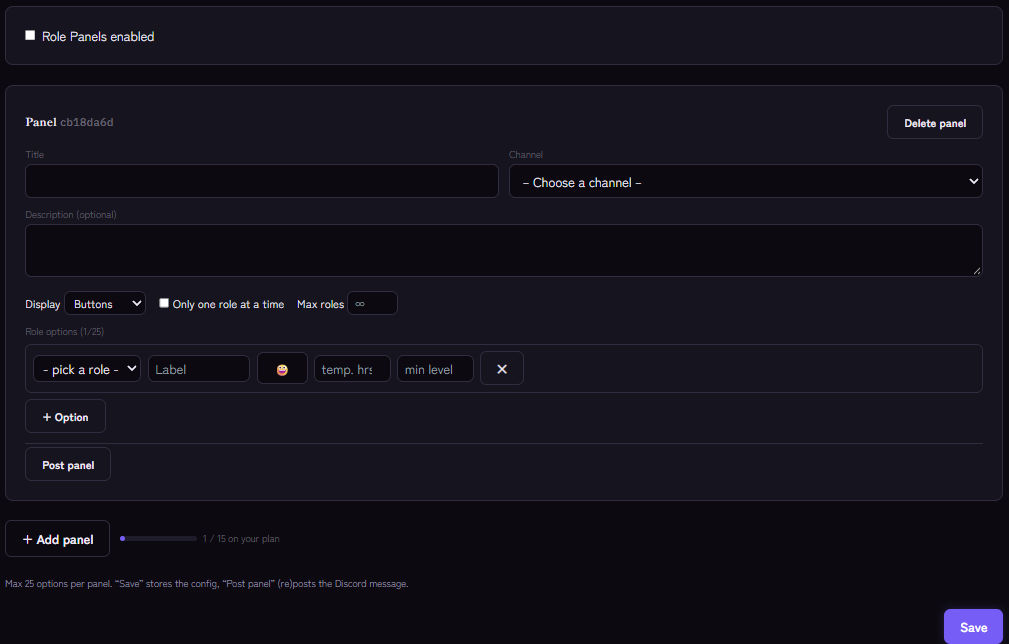
- Open the Role Panels module in the Kage dashboard and switch on Role Panels enabled.
- Click + Add panel. Enter a Title, a Channel and optionally a Description.
- Under Display choose between Buttons and Dropdown.
- Set the rules:
- Only one role at a time: Whoever picks a new role loses the other roles from this panel. Ideal for alternatives such as pronouns or platforms.
- Max roles: Limits how many roles from the panel are possible at once.
- Under Role options add roles with + Option. Each option has a Label, optionally an Emoji, optionally temp. hrs (the role expires after that many hours) and optionally min level.
- Click Save and then Post panel. After changes, update the message in Discord with Update panel.
One panel holds up to 25 options. How many panels you can create depends on your plan.
Commands
You can also manage panels by command. You need the "Manage Server" permission:
/rolepanel createcreates a panel and posts it./rolepanel add-optionand/rolepanel remove-optionadd or remove roles./rolepanel settingssets "only one role" and the maximum./rolepanel listshows all panels,/rolepanel deletedeletes one together with its message.
How the options behave
- Temporary: If an option has hours set, the member gets the role only for that time. Afterwards Kage removes it automatically, see temporary roles.
- Minimum level: Whoever has not reached the level does not get the role and receives a notice. The level comes from the Levels & XP module.
- Feedback: After every selection the member sees a message only they can see, showing which roles were added (➕) and removed (➖).
If it does not work
- Nothing happens on click. Check the role order and the Manage Roles permission. If a permission is missing, the member gets a matching message.
- The panel reports "inactive". The module is switched off or the panel was removed. Switch Role Panels enabled back on.
- The message is wrong after a change. Click Update panel so Discord shows the new version.
- A role cannot be chosen. Check the option's minimum level and whether the level system is active.
Detailed troubleshooting: Discord bot not giving roles.
FAQ
Does it keep working after a restart?
Yes. The buttons and the dropdown menu stay active after a bot restart.
Can I use Role Panels in onboarding?
Yes. Server onboarding uses Role Panels for the role selection, see Onboarding with role selection and questions.
What happens to roles already assigned when I delete a panel?
They stay with the member. Deleting only removes the panel and its message.
Related Kage features
- Role PanelsFrom Premium
- Reaction RolesIncluded in Basic
- Levels & XPFrom Premium
- Temporary RolesFrom Premium
Related articles
More on this topic: Discord Roles Guide: How to Set Up and Manage Roles
More questions? Ask Kage AIAI
Describe what you need – Kage AI picks out the right guide and gives you the sources.
Try Kage on your server
Sign in with Discord, invite the bot and set up the modules in the dashboard. The Basic plan is free forever.